Introduction
Frustrated by buffering videos, laggy Zoom calls, or slow downloads on your Windows 11 PC? You’re not alone. Many users have reported issues with slow internet on Windows 11, even when their connection seems fine on other devices. The good news? There are several proven ways to fix slow internet Windows 11 issues—no tech expertise required.
Check Your Internet Speed
Before making any changes, test your current internet speed.
- 1. Visit Speedtest by Ookla.
- 2.Click the “Go” button to begin testing.
- 3.Note your download and upload speeds.
Restart Your Modem and Router
A quick restart can often resolve temporary glitches.
- 1. Unplug your modem and router.
- 2.Wait for 60 seconds.
- 3.Plug them back in and wait for the lights to stabilize..
Test your connection again. This fix often clears up minor Windows 11 network issues.
Run the Windows Network Troubleshooter
Windows 11 has built-in tools to detect and fix connectivity issues.
- 1.Go to Settings > System > Troubleshoot > Other troubleshooters.
- 2.Click Run next to Internet Connections.
- 3.Follow the on-screen instructions..
href=”https://beebom.com/how-speed-up-windows-11/”> /windows-11-performance-tips

Update Network Drivers
Outdated drivers can slow down your internet connection.
- 1.Press Windows + X and select Device Manager
- 2.Expand Network adapters.
- 3.Right-click your network device and select Update driver...
- 4.Choose Search automatically for drivers.
If Windows can’t find a driver, visit the manufacturer’s website (like Intel or Realtek) and download the latest version.Also read: /how-to-update-drivers
Also read: /how-to-update-drivers
Background ADisable pps
Some apps use bandwidth in the background without you noticing.
- 1.Open Settings > Apps > Installed Apps.
- 2.Click the three dots next to unnecessary apps.
- 3.Select Advanced options.
- 4.Under Background apps permissions, select Never.
You can also press Ctrl + Shift + Esc to open Task Manager and check the Network tab for bandwidth-heavy apps.
Reset Network Settings
If none of the above worked, reset your network settings.
- 1.Open Settings > Apps > Installed Apps.
- 2.Click Network reset.
- 3.Select Reset now.
Note: This will remove all saved Wi-Fi networks and VPNs. Reconnect after the reset.
Change DNS Server Settings
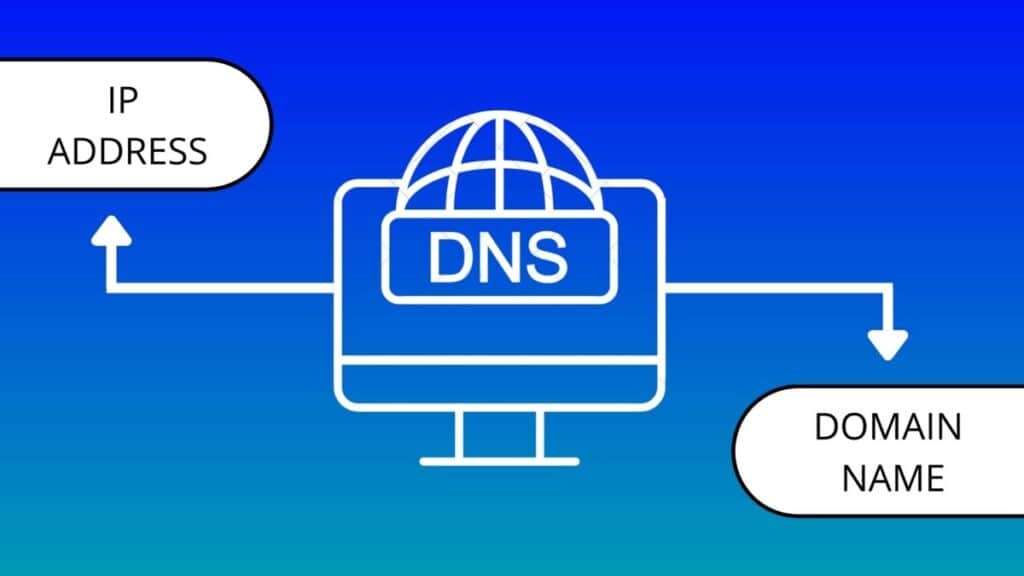
Your default DNS might be slowing you down.
- 1. Go to Settings > Network & Internet > Wi-Fi (or Ethernet) > Hardware properties.
- 2.Click Edit next to DNS server assignment.
- 3.Choose Manual, turn on IPv4, and enter:
- o Preferred: 8.8.8.8
- o Alternate: 8.8.4.4
- 4.Click Save.
This switches to Google’s public DNS, which can improve internet speed and reliability.
Optimize Wi-Fi Signal Strength
Physical barriers or interference can weaken Wi-Fi.
- · Place your router in a central, open area.
- · Keep it away from microwaves, cordless phones, and walls.
- · Use a Wi-Fi extender or mesh network system if you have a large home.
Want to go deeper? Check out our post: /troubleshoot-wifi-issues
Top 5 Quick Fixes for Slow Internet on Windows 11
Here’s a quick-reference list of the most effective fixes:
- 1. Restart your modem and ro uter.
- 2. Run the Windows 11 Network Troubleshooter.
- 3. Update network drivers via Device Manager.
- 4. Disable background apps that hog bandwidth.
- 5. Reset your network settings completely.
Conclusion
A slow internet connection on Windows 11 can be incredibly frustrating—but it doesn’t have to stay that way. With this step-by-step guide, you now have multiple strategies to diagnose and fix slow internet Windows 11 issues. From resetting network settings to updating drivers and optimizing your DNS, you’re well on your way to a faster connection.
Which fix worked best for your Windows 11 internet issues? Drop a comment below!
FAQs
Why is my internet slow on Windows 11?
Slow internet on Windows 11 can result from outdated drivers, background apps, or weak Wi-Fi signals. Our guide offers step-by-step fixes to resolve these issues.
How do I troubleshoot slow internet on Windows 11?
Use the built-in Network Troubleshooter, update drivers, or reset network settings. Follow our detailed steps for quick solutions!
Can Windows 11 updates fix slow internet?
Yes, updating Windows 11 can resolve network bugs and improve performance. Check our guide for instructions on updating your system.
How do I test my internet speed on Windows 11?
Use tools like Speedtest by Ookla or Windows’ built-in network diagnostics. Our post explains how to measure and improve your speed.
Want to get more done in less time
Discover the top 10 Chrome extensions for ultimate productivity in 2025Read the Full List
Struggling to write the perfect email
Let ChatGPT help — explore our complete email guide with ready-made prompts Improve Your Emails Now