Top 7 Keyboard Shortcuts That Will Save You Hours
If you’re still clicking your way through every task, you’re missing out on one of the easiest productivity boosts: keyboard shortcuts. Whether you’re working in Word, browsing Chrome, or managing files, knowing a few key combos can literally save you hours each week.
Here are the top 7 keyboard shortcuts every busy person should know in 2025
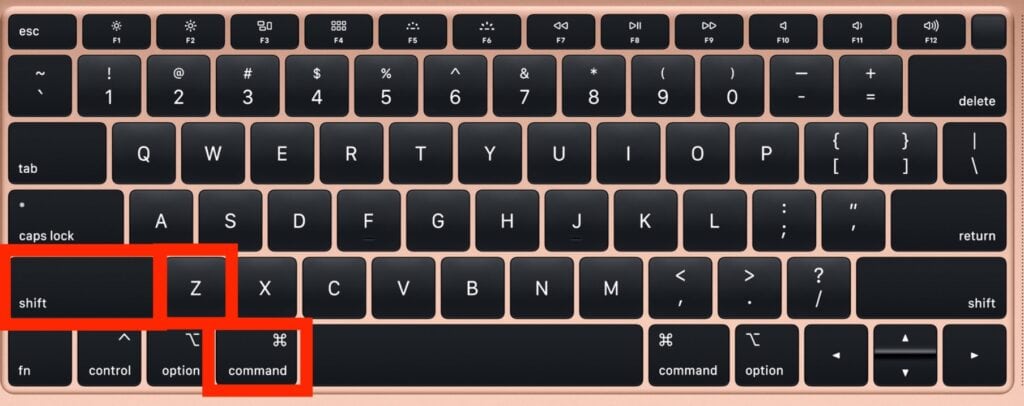
1. Ctrl + Z / Cmd + Z
Undo Anything
Made a mistake? Deleted something important? This magical shortcut will undo your last action.
- Works in: Word, Google Docs, Photoshop, most apps
Pro Tip: You can keep pressing it to undo multiple steps.
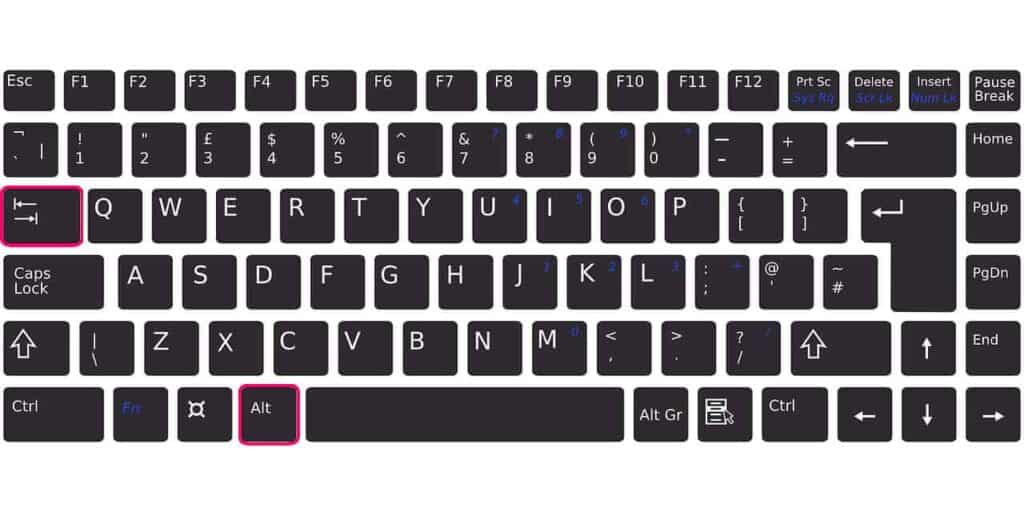
2. Alt + Tab / Cmd + Tab
Switch Between Apps Quickly
Tired of clicking between windows? Use this shortcut to instantly flip between your open apps.
- Works in: Windows (Alt + Tab), macOS (Cmd + Tab)
Time-Saver: Especially useful during multitasking or meetings.
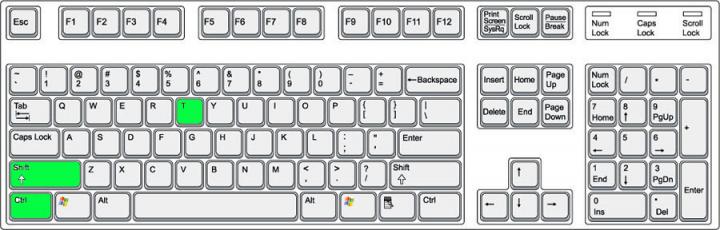
3. Ctrl + Shift + T / Cmd + Shift + T
Reopen Closed Tabs
Accidentally closed an important browser tab? Bring it back with this shortcut.
- Works in: Chrome, Firefox, Edge
Bonus: Works for multiple tabs if used repeatedly.
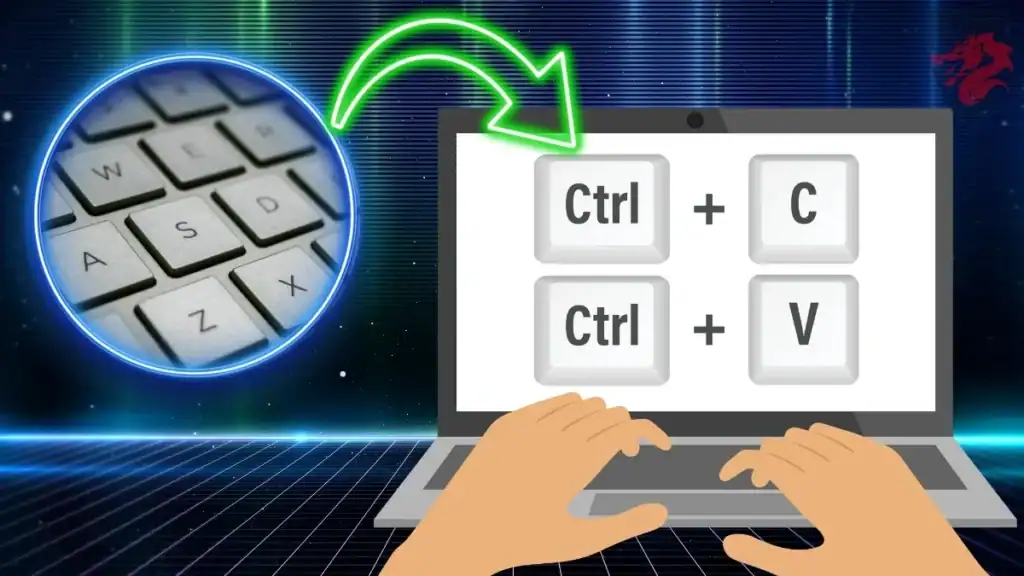
4. Ctrl + C / Ctrl + V / Ctrl + X
Copy, Paste & Cut
The holy trinity of keyboard shortcuts. No need to explain — just memorize these.
- Works everywhere
Speed Tip: Combine with Ctrl + A to select everything before copying.
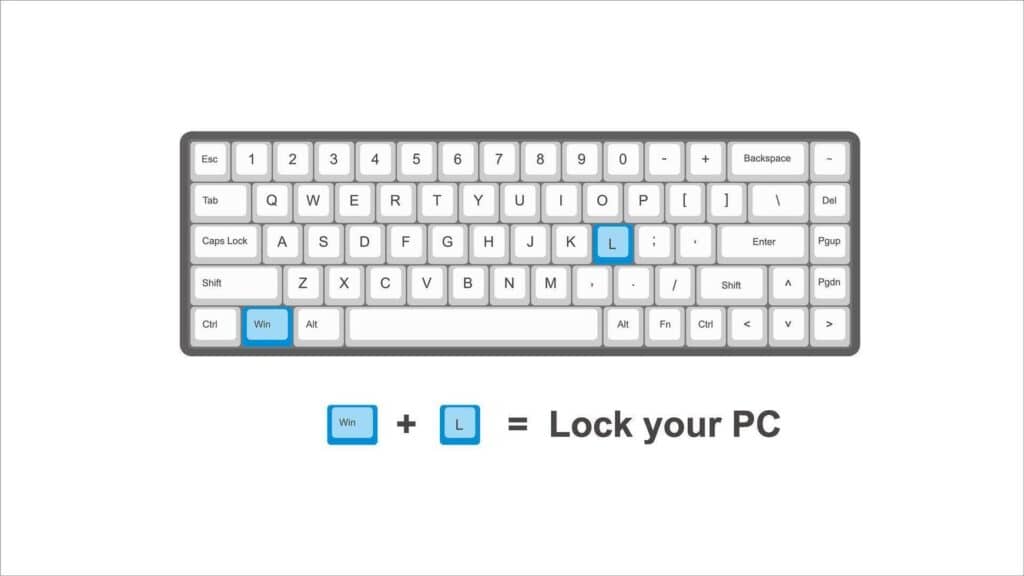
5. Windows + L / Ctrl + Cmd + Q (Mac)
Lock Your Screen
Need a quick break but want to protect your work? Lock your screen in seconds.
- Great for: Offices, shared workspaces
Pro Tip: Make it a habit for better digital hygiene.
6. Ctrl + F / Cmd + F
Find Anything Fast
Search any page or document instantly. No more scrolling endlessly.
- Works in: Browsers, PDFs, Word, Excel, etc.
Use Case: Jump to specific words, data, or sections quickly.
7. Ctrl + S / Cmd + S
Save Before You Lose It
Don’t trust autosave. This shortcut will instantly save your current file or project.
- Especially useful in: Photoshop, Excel, Word, design tools
Safety Hack: Hit it frequently, especially before coffee breaks.
Bonus: Learn App-Specific Shortcuts
Many apps like Figma, Notion, Slack, and VS Code have their own shortcut systems. Learn a few in each app you use daily, and you’ll become a productivity machine.
Conclusion
Keyboard shortcuts are like cheat codes for your digital life. Start with these 7 and you’ll find yourself getting more done in less time — without touching the mouse.
Don’t memorize them all at once. Pick 2–3 this week, and build up from there.
Call to Action
Found this useful? Bookmark the post and share it with your productivity-obsessed friends!
And don’t forget to subscribe to our newsletter for weekly tech tips.
Resources
Internal Links: –
Time Management Tips – Best Productivity Apps – How to Manage Time
External Sources: – Zapier’s Guide to Chrome Extensions – ClickUp’s Chrome Extension Guide
FAQs
Do these shortcuts work on all computers?
Most work on both Windows and Mac, with slight variations (e.g., Ctrl vs Cmd).
Are there shortcuts for mobile apps too?
Not exactly, but mobile apps often support gestures (like swipe to undo) for similar speed.
How can I learn more shortcuts for specific apps?
Check the app’s help center or use cheat sheet plugins like CheatSheet (Mac) or KeyRocket (Windows).